Set up your computer
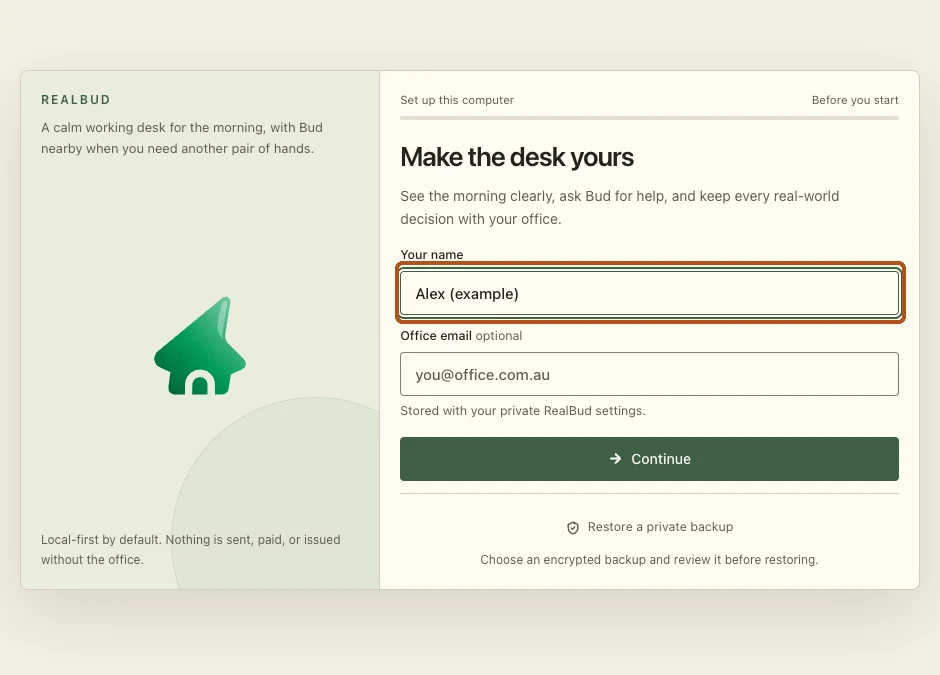
Make the desk yours
Enter your name, then select Continue.
What happens next
The office connection screen opens.
Office email is optional. Use the name you want Bud to call you.
 RealBudGuide
The RealBud handbook
One step at a time. Follow along beside RealBud.
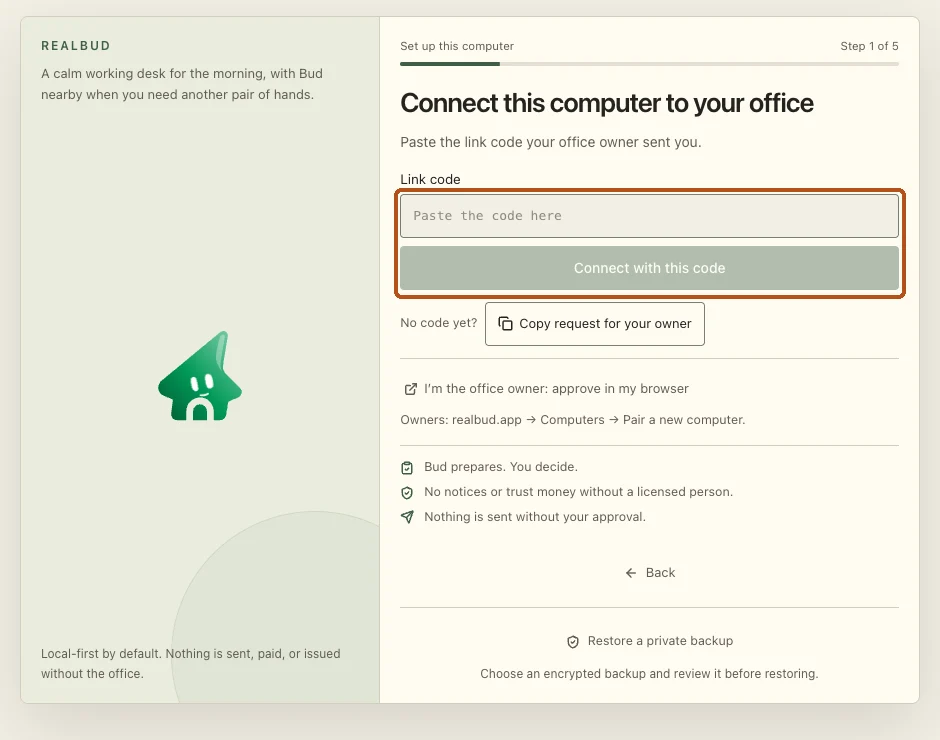
Have your office owner’s link code ready. It links this computer; your personal sign-in and app permissions are checked separately.
Already set up? Start with your first task. Need connection settings? Go to Workspace.
Watch the walkthrough
Set up your computer
Enter your name, then select Continue.
The office connection screen opens.
Office email is optional. Use the name you want Bud to call you.
Set up your computer
Paste the link code your office owner gave you. Select Connect with this code.
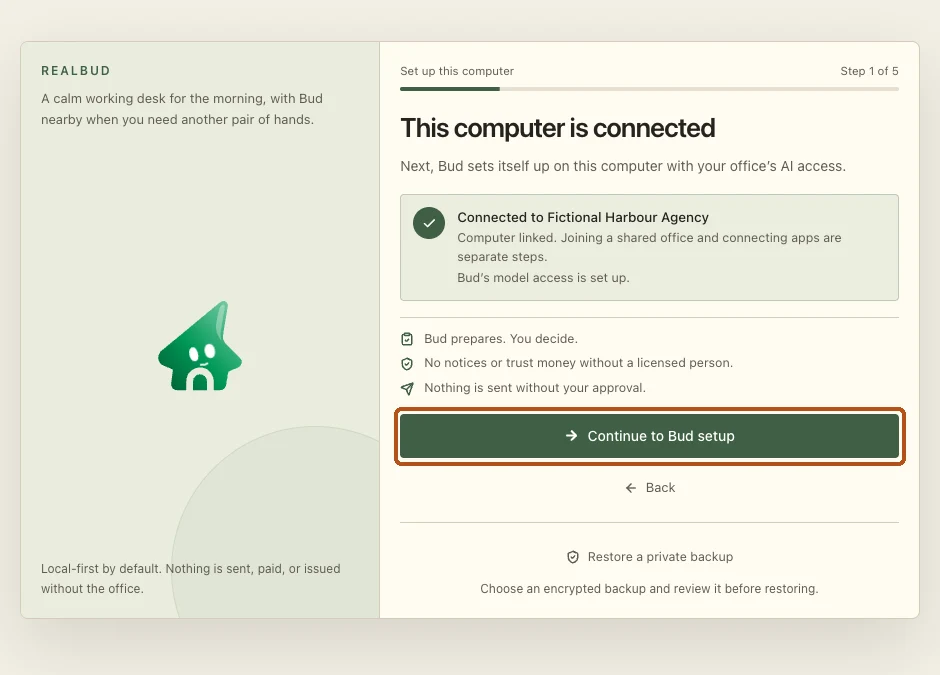
RealBud confirms which office this computer is connected to.
No code? Select Copy request for your owner, then share that request with them.
Set up your computer
Check the office name is correct, then select Continue to Bud setup.
Bud setup opens. RealBud prepares Bud on this computer.
If the office name is wrong, check with your owner before continuing.
Set up your computer
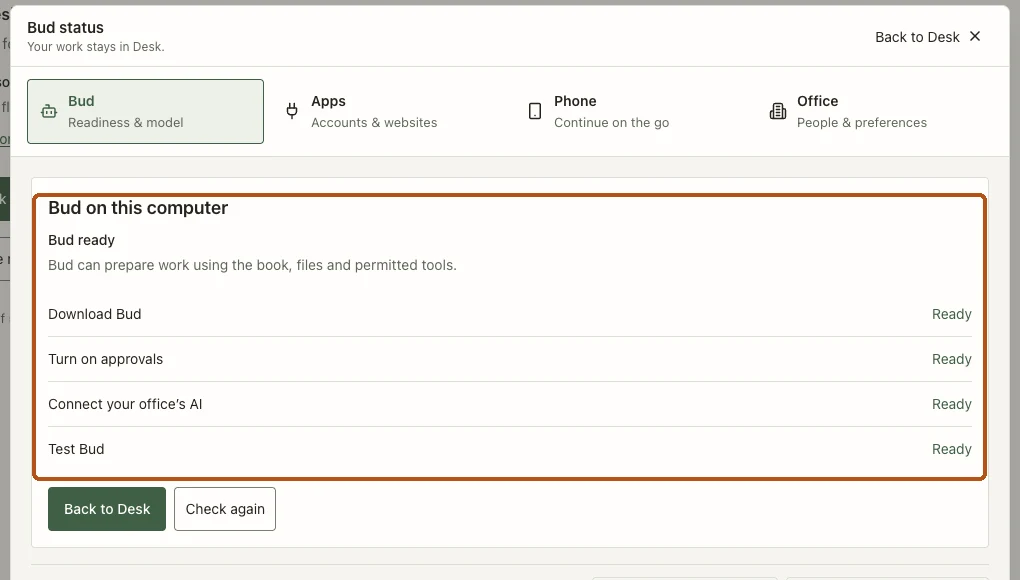
Wait for the checks to show Ready. Select Back to Desk when ready.
Desk opens with Bud available to help.
If setup is still waiting, follow the message shown and use Check again.
Do your first task
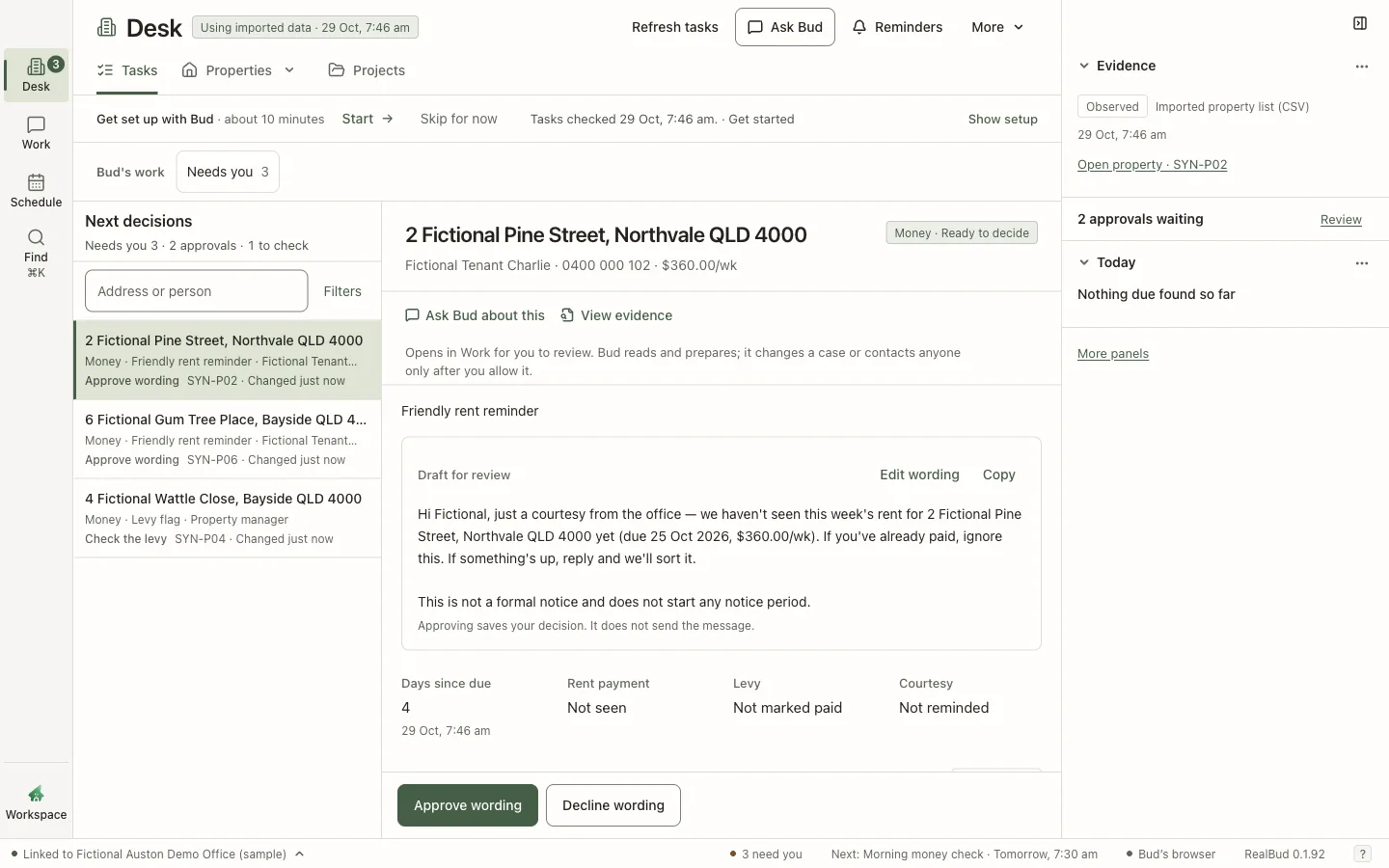
Open Desk and select a row in Next decisions. Read Bud’s draft, then select Approve wording or Decline wording.
Your decision is saved on the case.
Approving saves your decision. It does not send anything.
Do your first task
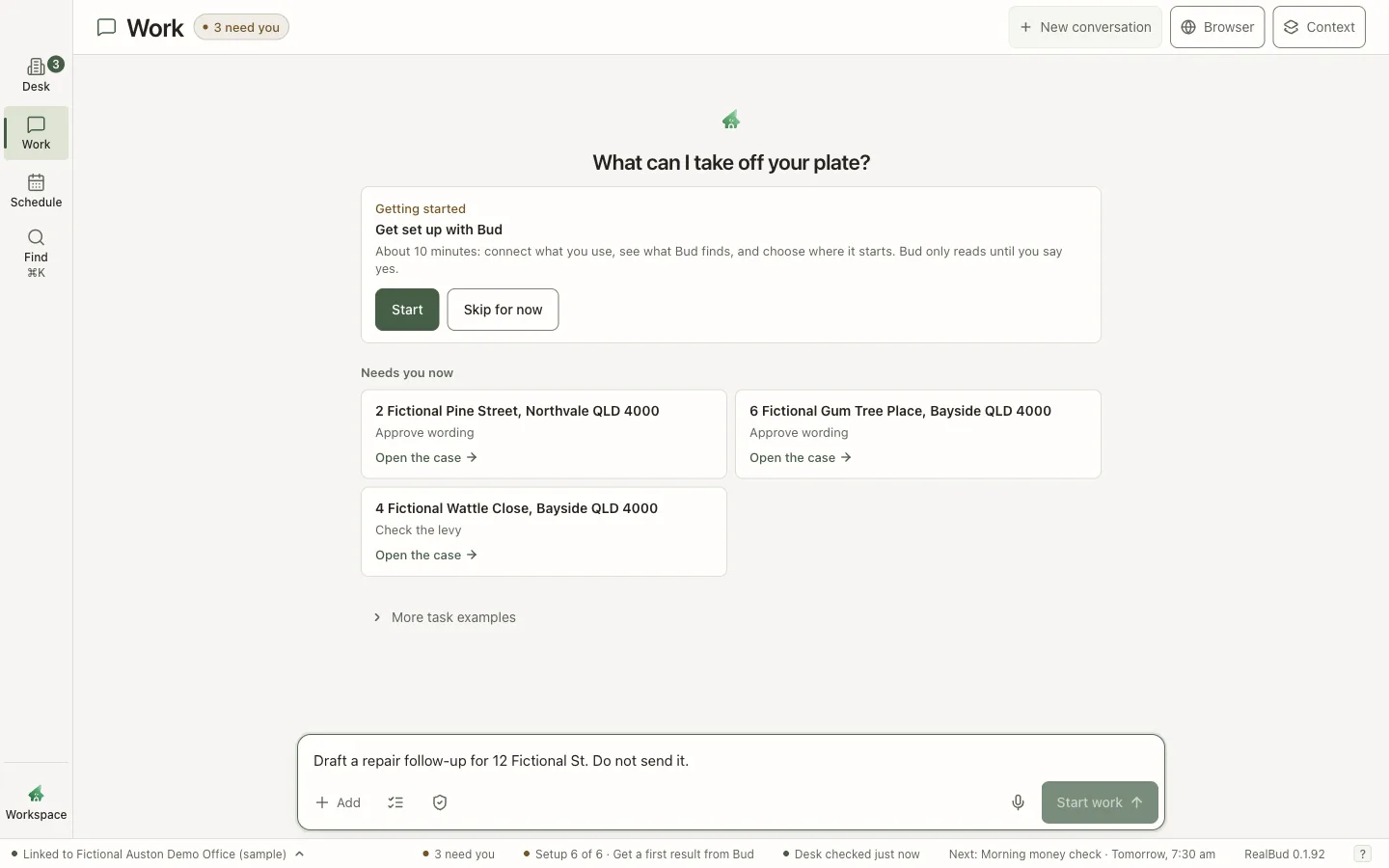
Describe the result you want, then select Start work.
Bud starts on the task and replies in the conversation.
Try: “Draft a repair follow-up for 12 Fictional St. Do not send it.”
Do your first task
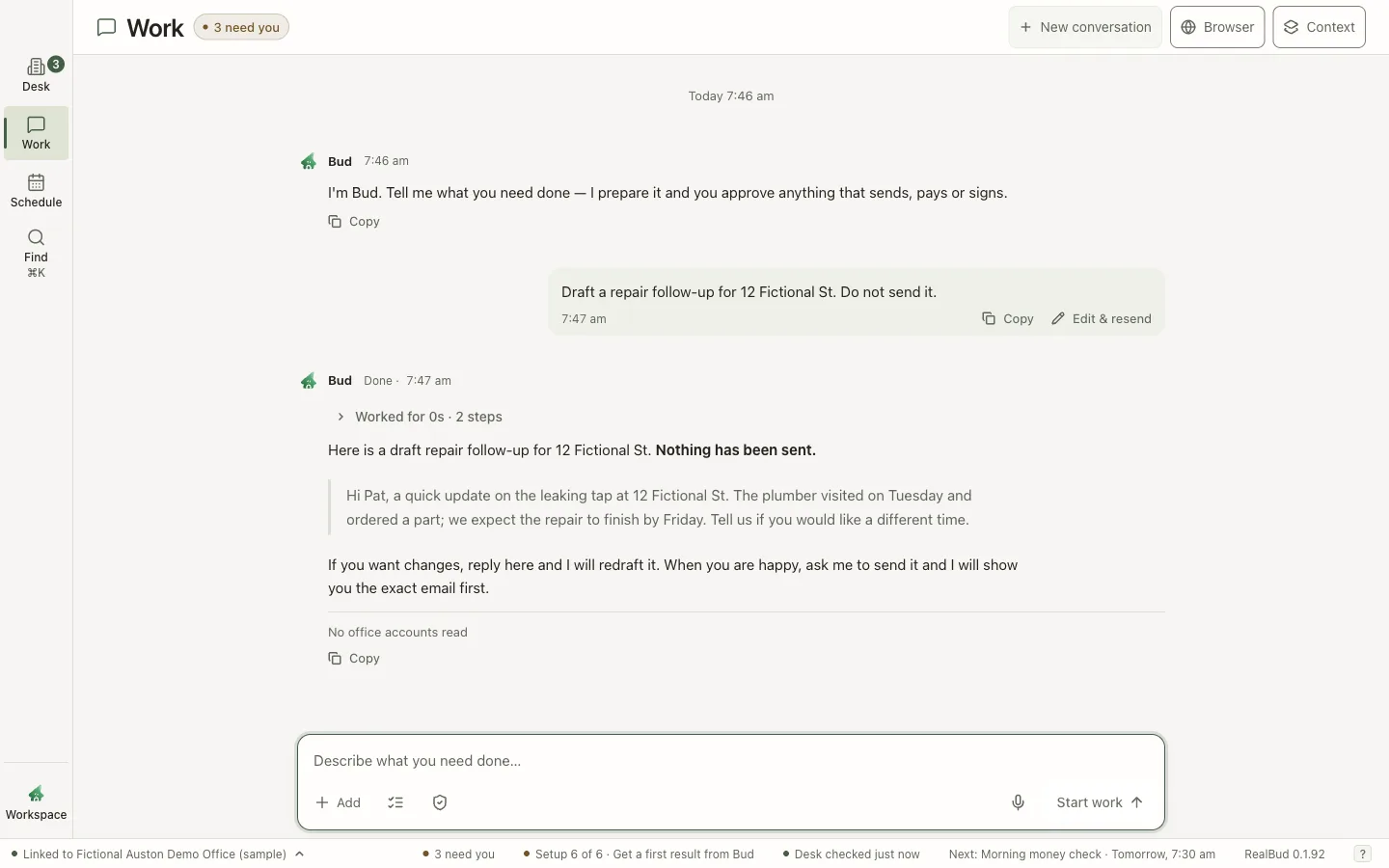
Read Bud’s reply. Ask for any changes in the message box.
Bud redrafts until you are happy.
A draft is not a sent message. Check names, dates and amounts.
Manage repeating work
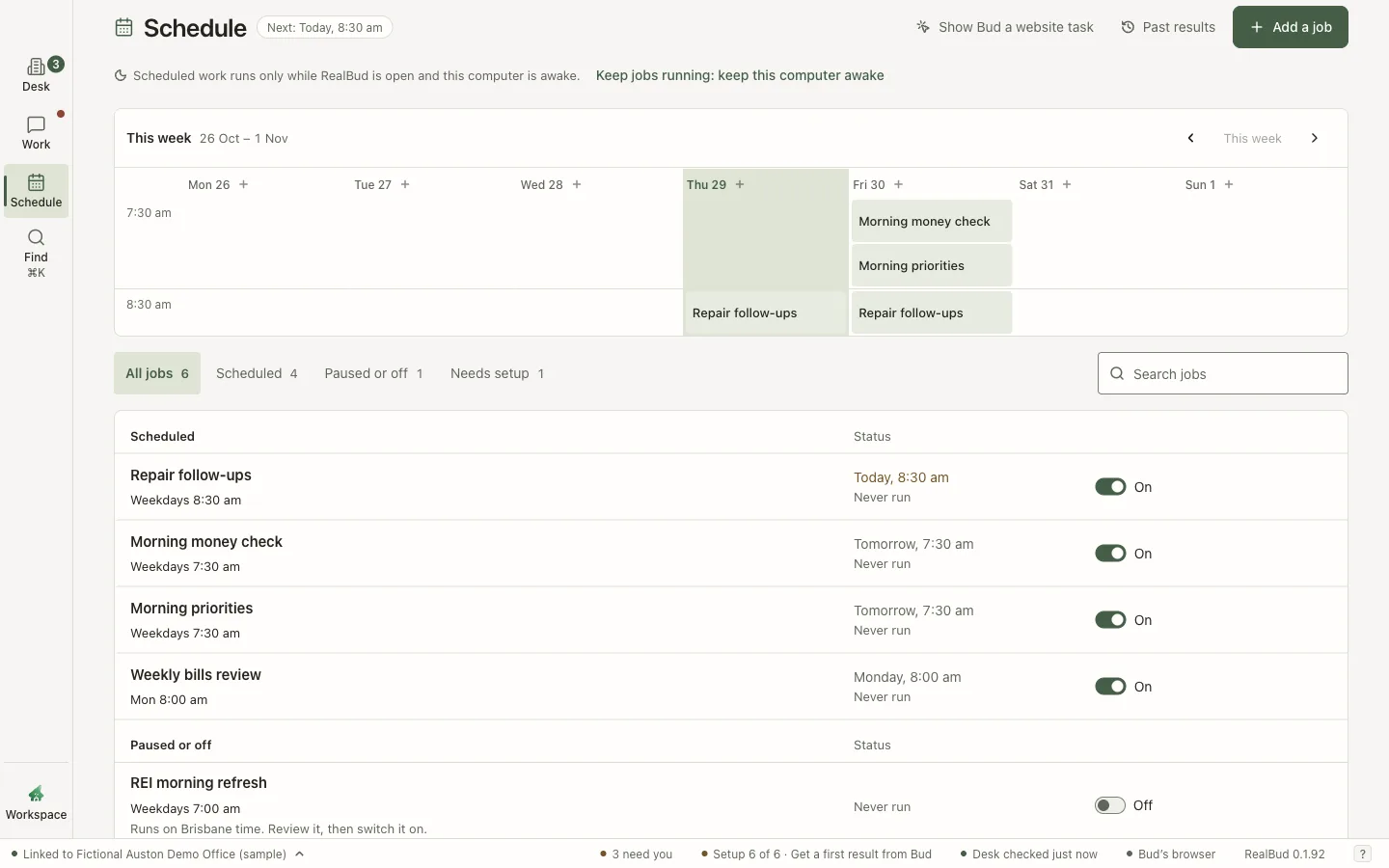
Open Schedule. The week shows when each job runs; the list below shows every job.
Switch a job on or off right in the list.
Manage repeating work
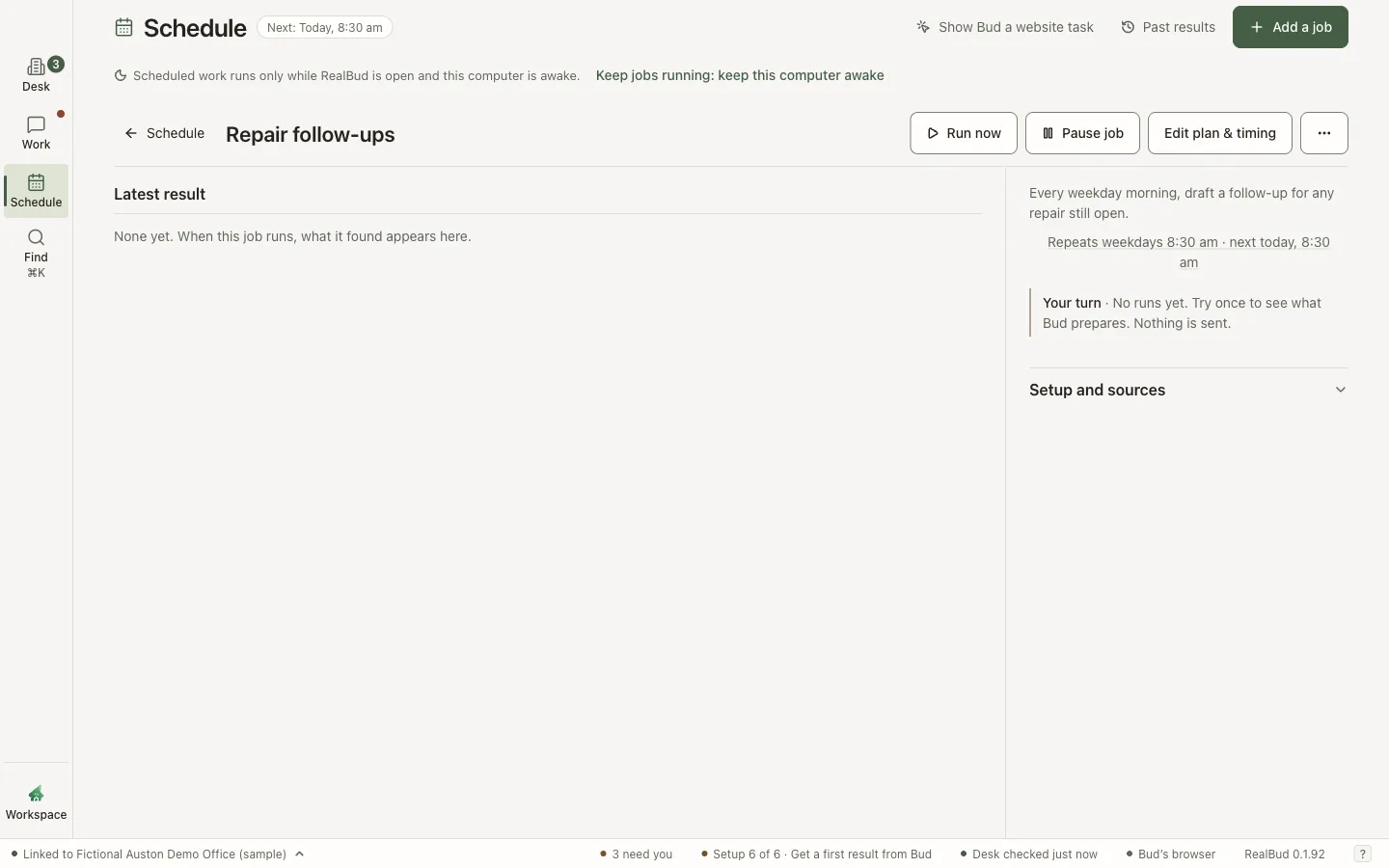
Select a job to open it.
Run now runs it once straight away. Pause job stops future runs until you resume.
Find settings and help
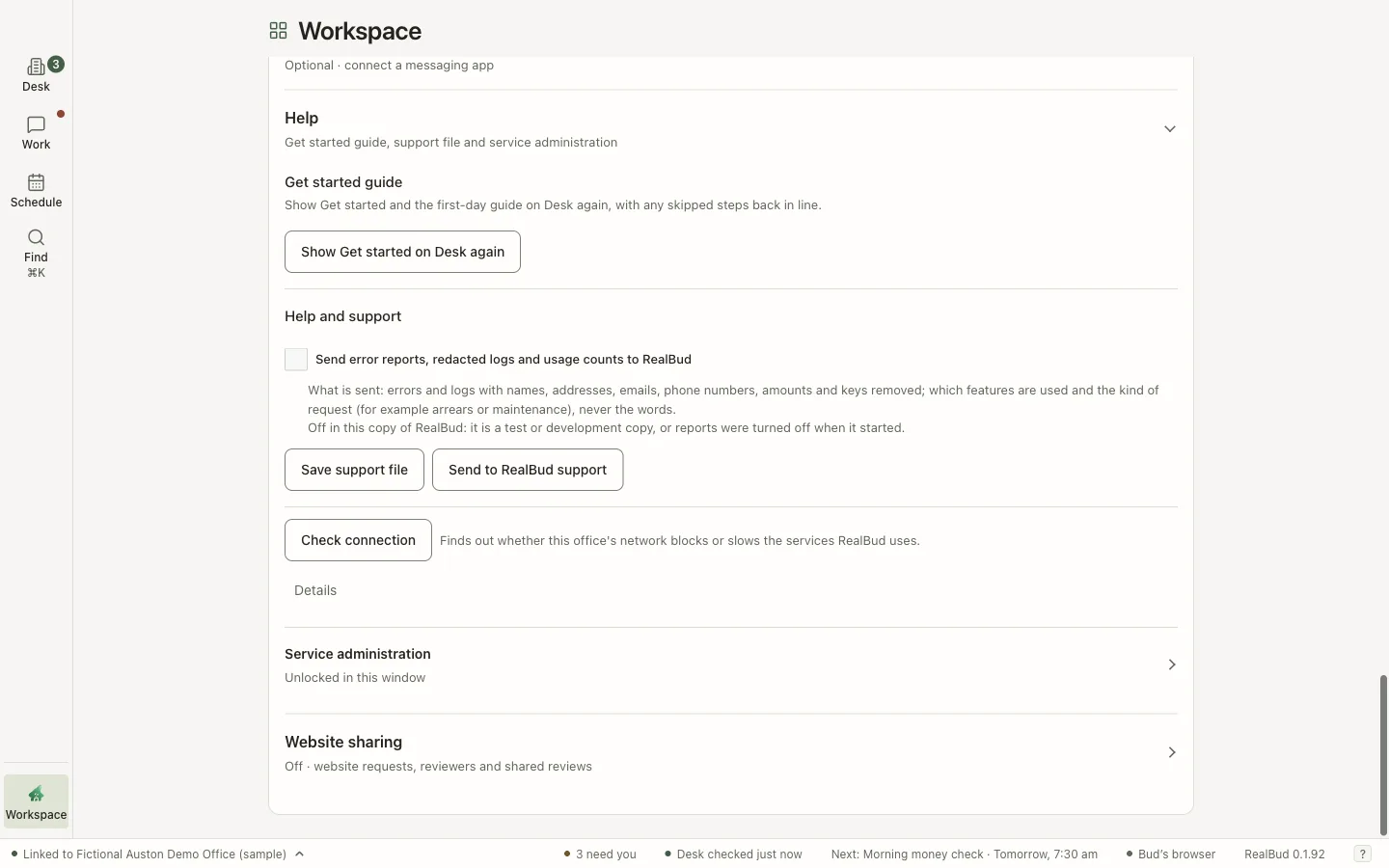
Open Workspace, then Settings & help. Help is near the bottom.
You can bring back Get started, save a support file or send it to RealBud support.
Email the support file to hello@realbud.app. Press ? at any time for keyboard shortcuts.